
IT Service Desk


View the content of this page
IT Service Desk
For all IT-related questions and problems you can visit the Self Service Portal of UHasselt 24/7. You can also reach the portal via the mobile Xurrent application on the Android Play store and on the Apple store.
The Service Desk only works by appointment, based on a request via the Self Service Portal.
The Service Desk employees can schedule your appointment in various ways:
- Digitally via a telephone intervention and remote access to your computer.
- Teamviewer for windows
- Teamviewer for mac (open the zipfile after download)
- At the Service Desk on campus Diepenbeek or campus Hasselt.
- At your UH workplace.
The Service Desk will only be available by phone at +32 (0) 11 26 81 31.
We ask that you use this number only for:
1. Reporting a general problem with a significant impact on the entire organization.
2. When you no longer have access to your account and cannot reach the portal.
For all other questions and problems, we will always refer you to the Self Service Portal.
Username and Password
First you need to activate your account. You received the user ID and initial password when you first registered.
You need the user ID and password for a number of secure applications such as :
- Student file / Study time registration
- Electronic learning environment Blackboard and Perception
- Log in to the UHasselt network
- ...
You can change your password at any time.
Your password must consist of:
- at least 8 and maximum 20 characters
- a combination of uppercase, lowercase and numbers
If you no longer know your password or if it is no longer accepted, you can use password recovery provided you have registered an alternative email address (eg a private email address). In other cases you can visit the Self Service Portal of the Service Desk.
Multi Factor Authentication (MFA)
TIP: Ensure access to your UHasselt account and set up multiple MFA methods (IT supports Microsoft MFA here because of our accounts in Microsoft).
Update: When logging in, the system itself chooses the most secure and convenient method for you from the set methods. So you don't need to set a preferred method (anymore) yourself.
Follow these steps to activate MFA:
STEP 1: Open an Incognito window in Google Chrome and navigate to https://mfa.uhasselt.be.
Enter your UHasselt email address.
You will be redirected to the Microsoft login screen.
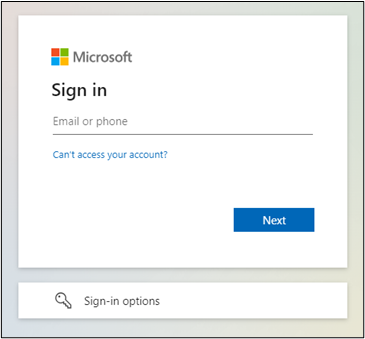
Tip: To open an incognito window in Google Chrome use one of the following methods:
- Open Google Chrome and use key combination ctrl + shift + N
- Google Chrome and click on the 3 vertical dots in the upper right corner and choose “New Incognito window”
STEP 2: Log in with your UHasselt password.
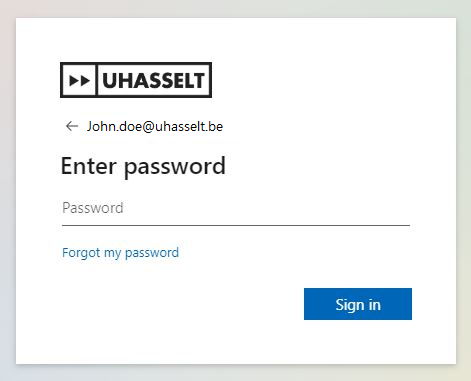
STEP 3: Click on “Sign in”.
STEP 4: Click on "Add method".
STEP 5: Select the method you wish to use:
- Authentication using the Microsoft Authenticator app on your smartphone
Recommended by IT as standard method; The most user-friendly and safe method for daily use. - Authentication using a Security key
The most secure method, but it requires the purchase of a security key (USB security key). - Authentication using other authenticator app such as Google authenticator, LastPass, Authy, Aegis, etc.
Not recommended by IT!: the service desk does not support these alternative apps.
STEP 6: Click on "Add"
STEP 7: Be sure to add a second method.
This way you retain maximum access to your account, even if your device is lost or you do not have it at hand.
Method 1: Authenticate with the Microsoft Authenticator app
Method 1: Authenticate with the Microsoft Authenticator app
The Microsoft Authenticator app is supported and recommended by the UHasselt Service Desk for daily use, because it is the most user-friendly and secure method for MFA.
Follow these steps to set up authentication with the Microsoft Authenticator app:
- If you choose the Authenticator app method, you will see the screen below on your computer.
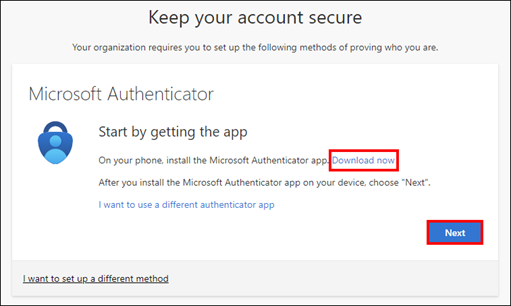
- Use your smartphone and open to the App Store (iOS), Google Play Store (Android), or Microsoft Store to download the Microsoft Authenticator app. The icon in the store looks like this:
- Download and install the Microsoft Authenticator app.
Tip: Are you using an iPhone? Make sure the Microsoft Authenticator app is allowed to send push messages so that you can approve them. To do this, open Settings > Notifications > select the Microsoft Authenticator app and enable "Allow notifications". - Installation successful? Click "Next" on your computer screen.
- You will see a QR code on your computer screen.
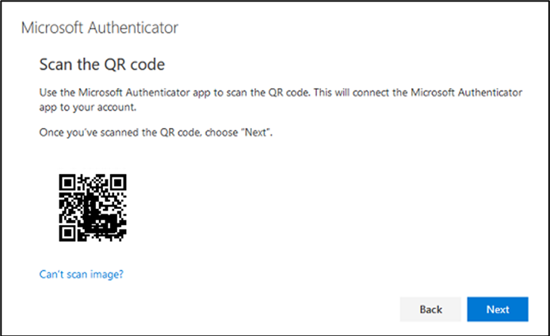
- Open the Microsoft Authenticator app on your smartphone and choose "Scan QR code". The app will request access to the camera to scan the QR code. Choose "Allow".
- Point your camera at the QR code to scan it (as if you were taking a photo of it). Your UHasselt account is now added to the Microsoft Authenticator app.
- Click "Next" on your computer screen.
- You will receive a test code on your smartphone. Tap "Approve".
- A confirmation will appear on your computer screen. Click "Done". The Microsoft Authenticator app is now in your list of methods.
Take note: This method becomes unusable if you uninstall the Microsoft Authenticator app, after a factory reset, or when transferring your apps and data to a new device.
Method 2: Authentication using a security key
Method 2: Authentication using a security key
With this third option you use a security key (USB security key) to log in. This method provides the best security for your account but requires the purchase of a hardware device such as a Yubikey (for sale in the UHasselt webshop).

Follow these steps to set up security key authentication:
-
Click on "Add method".
-
Select "Security key" and click "Add".
-
Click "Next" and log in with MFA.
-
Follow the manual of the Security key
(surf to yubico.com/start) -
You will have to choose a PIN code for your security key. Make sure you don't forget it.
-
How to reset a security key if you forget the PIN code can also be found in the manual.
Please note: You cannot use this security key method to set up MFA. If you want to start with MFA, you will definitely need a telephone number. You can add this method afterwards.
If you wish, you can purchase a different security key yourself.
Note: Make sure you purchase a security key that supports the FIDO2 protocol.
Method 3: Authenticate using another authenticator app
Method 3: Authenticate using another authenticator app
In addition to the Microsoft Authenticator app, you can also use another authenticator app such as Google Authenticator, LastPass, Authy, Aegis Authenticator, etc.
Note: UHasselt service desk does not support these alternative apps. So only use one of these if you are already familiar with it.
If you choose this method, you must manually add an account in the authenticator app by entering an account name and secret key. Detailed instructions for adding accounts can be found in the manual of the chosen app.
Follow these steps to set up authentication with another authenticator app:
-
Click on "Add method".
-
Select "Authenticator App" and click "Add".
-
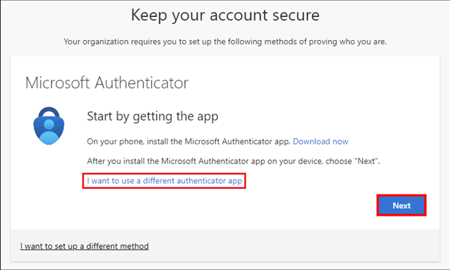
You will be asked to download the Microsoft Authenticator App. Click on "I want to use a different authenticator app".
-
Once you have downloaded and installed the app, click "Next".
-
Add your UHasselt account to your authenticator app. This can be done in two ways:
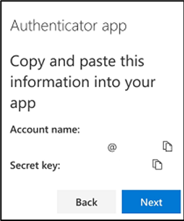
- From the smartphone on which you have installed the authenticator app, you can copy the account name and secret key by clicking on the documents icon. Then paste this information into your authenticator app. Then click on "Next".
- Using another device (laptop, desktop, tablet, ...)
This is the most user-friendly method. A QR code will be displayed that you can scan with your authenticator app. If this has not already been done, you will have to give the app access to the camera. After scanning, your UHasselt account will be added automatically. Then click on "Next".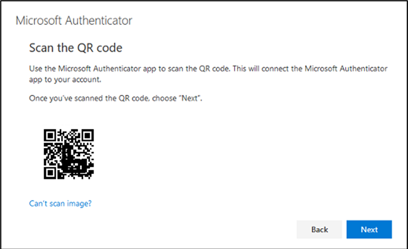
- From the smartphone on which you have installed the authenticator app, you can copy the account name and secret key by clicking on the documents icon. Then paste this information into your authenticator app. Then click on "Next".
-
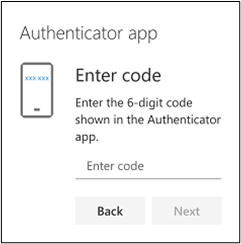
As a final step, you will be asked to enter the six-digit code. You can find this code when you tap your account in the authenticator app.
Computer Policy
General code of conduct
The PCs, servers and related equipment, which are accessible to students, may only be used for tasks directly related to study activities on campus. More information is available at our Information Safety Commission (IVC).
Furthermore, everyone is also subject to the code of conduct of Belnet, which is the internet provider for the university.
Finally, reference is also made to Belgian legislation on privacy, secrecy of correspondence, copyright and related domains.
Concrete agreements (non-exhaustive list)
- Login details are strictly personal. Usernames and passwords may not be lent to others. It is forbidden to use login details of others.
- It is not allowed to assume a false identity via the network.
- System information, system configurations or available application programs should not be changed.
- It is not allowed to gain access to (networked or not) information or systems that are not publicly accessible or to which the owner has not given you access. Attempts to do so are also punishable.
- UHasselt's computers and network may not be used for commercial or political purposes, in any way whatsoever.
- It is not allowed to make unauthorized or illegal copies of copyrighted material. download, offer, store, distribute or trade via UHasselt computer systems.
- It is prohibited to install, offer or manage exchange programs or P2P indexes or systems via UHasselt computer systems.