
Digital exam with Ans & Schoolyear
🚨New SchoolYear installation🚨
A new installation version of SchoolYear for Windows will be available starting March 1, 2026. This will introduce a new installation method specifically for Windows. You can discover the new method via this link. Upgrade your SchoolYear for Windows installation in a timely manner!
Check the functionality of SchoolYear before taking a digital exam, you can always do this via the SchoolYear Laptop Check.
If you have any problems installing or using SchoolYear, you can always contact the service desk for support.
Digital exams @ Hasselt University
UHasselt is strongly committed to digital assessment and does so by using the Ans-platform and the Schoolyear lockdown browser.
Ans is the environment where teachers set your assignments and exams and where you can take them. Schoolyear ensures that your exam can also be conducted securely, without you having access to everything on your laptop, the internet, AI, etc. All attempts at cheating will be logged by the system and may result in you being (temporarily) unable to continue working.
Points to consider regarding digital exams
There are a number of things to keep in mind when taking digital exams:
- Make sure your laptop is fully charged and bring your charger with you just in case.
- Make sure you can log in to uhasselt-wifi (a hotspot will not work).
- Make sure you know your passwords (for your uhasselt account, your laptop, etc.).
- Check in advance in Ans whether you have access to all your courses.
Make sure you have completed the Schoolyear installation before the actual exam. You can do this by taking the test offered by the teacher or by performing the device check on the Schoolyear website (see also the step-by-step plan below).
Step-by-step plan for the (first) digital exam on campus
Step 1: Navigate to Ans.app and add yourself in the test course
Step 1: Navigate to Ans.app and add yourself in the test course
Go to Ans.app and log in with your UHasselt account. Then add yourself to the test group via this link.
Below is a detailed step-by-step plan for logging in:
- Open your browser (Google Chrome or Edge)
- Go to https://ans.app/ (or click on this link)
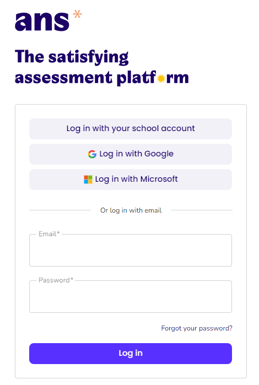
- Click on Login in the top right corner and then select ‘Log in with your school account’
- Search for ‘UHasselt’ and select it (by scrolling or typing)
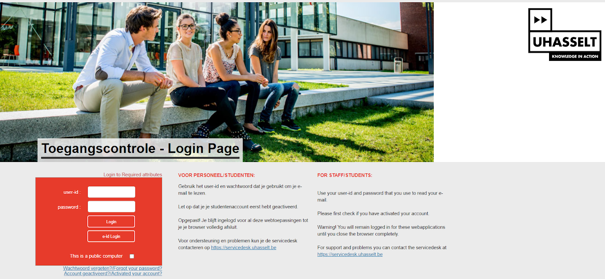
- Use your user ID and password on the UHasselt login page.
- You will then be automatically redirected to ‘Ans’.
- Next, click on this link to register for the ‘ICT’ test course.

Step 2: Open the exam
Step 2: Open the exam
Go to the ‘ICT 25/26’ course in Ans and open the test ‘ICT - Update/Installatie Schoolyear Examens - 2526 - code XXXX’.
Write down the code (XXXX in the example) so that you can use it if Schoolyear becomes locked.
Step 3: Start the exam
Step 3: Start the exam
Click on ‘Start’ and you will see that Schoolyear needs to download or update (this may take a few minutes). After the installation/update, Schoolyear will start up, which means that you will be logged out and will need to log back in to the secure environment.
Save everything you were working on beforehand.
Step 4: Complete the exam
Step 4: Complete the exam
Use this test to see what is possible in Ans, so that you don't waste time on this during the exam.
Fill in the questions and submit the test, then you can close Schoolyear.
Problems? Contact the Service Desk
Problems? Contact the Service Desk
Did you encounter a problem during this step-by-step plan and were unable to continue? If so, please create a ticket with at Service Desk and they will try to help you as soon as possible.
Here are a few articles that may help you with certain problems (these articles are currently only available in Dutch but feel free to use an online translator to translate them):
FAQ digital exams
My UHasselt Wi-Fi is not functioning
My UHasselt Wi-Fi is not functioning
Please contact the service desk to resolve this issue.
My internet connection failed during the exam
My internet connection failed during the exam
No problem, ANS automatically saves answers (every 30 seconds). Try connecting again, making sure that the ‘Connect to network automatically’ option is always checked.
You will need to ask the invigilator to enter the proctor code on your laptop.
I have forgotten my password / my password no longer works
I have forgotten my password / my password no longer works
If your password is stored on your smartphone, you may look it up (if you have received permission from the supervisor).
If this does not work, have your password changed via recovery.uhasselt.be and you will receive a link to set your password via email.
I don't have a laptop (with me) / I only have a tablet
I don't have a laptop (with me) / I only have a tablet
Please notify the teacher (in advance) so that they can provide a backup.
My laptop shut down/crashed during the exam
My laptop shut down/crashed during the exam
No problem, ANS automatically saves answers (every 30 seconds). Try restarting your laptop. If this does not work, ask the teacher for a backup.
My laptop is not charging / runs out of power quickly
My laptop is not charging / runs out of power quickly
Please inform the instructor (in advance) so that you can sit near a power outlet during the exam.
I cannot see the course/exam in Ans
I cannot see the course/exam in Ans
Please notify the instructor (in advance) so that your access can be verified.
How do I check if Schoolyear is installed correctly?
How do I check if Schoolyear is installed correctly?
Use the Schoolyear device check via this link.
IMPORTANT! You can only perform a device check 4 times in a 7-day period.
I have to enter a 6-digit code at Schoolyear
I have to enter a 6-digit code at Schoolyear
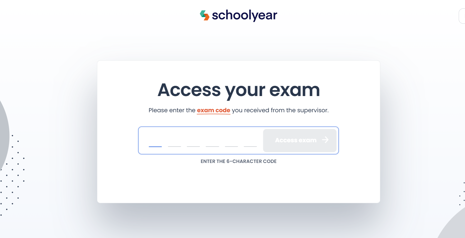
If you see the screen below, you have not followed the steps correctly. Go to ans.app, click on the button, and then click on start. Schoolyear will start automatically.
Schoolyear keeps downloading and won't start
Schoolyear keeps downloading and won't start
This is a known issue. You can find out how to resolve it by clicking on this link.
To do this, you need to grant access to the local network in your browser settings and then refresh the page.
Common problems Schoolyear
Common problems Schoolyear
Here are a few articles (in dutch*) that may help you with certain problems:
- General common problems
- Schoolyear does not start correctly or fails authentication check
- Schoolyear installation fails
- Schoolyear problems with MacOS
* Please use an online translator to translate these articles